
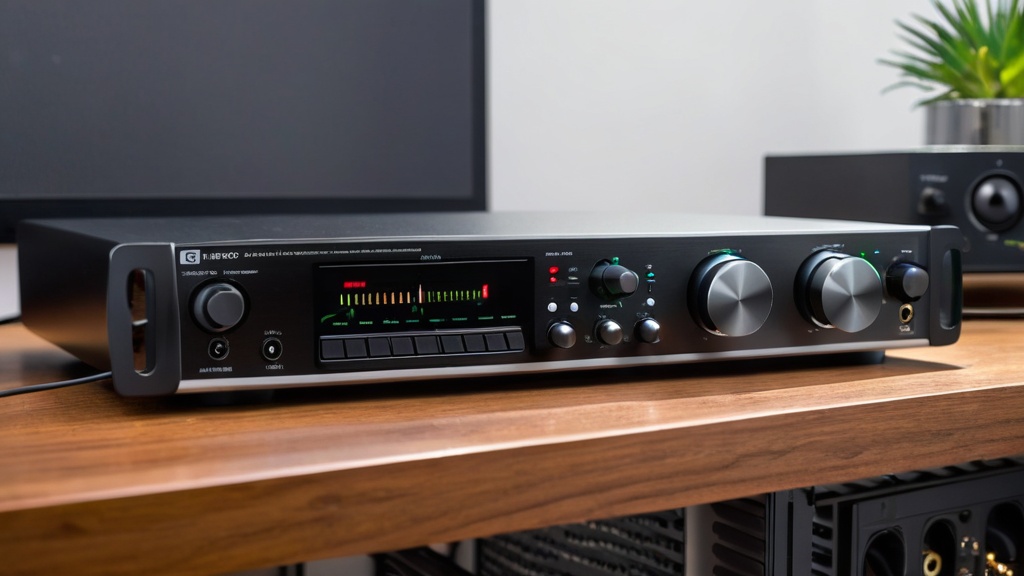

Short answer: An audio interface is an external sound card that converts the signal from your guitar or microphone into digital audio for your computer. You plug your guitar into the instrument input (Hi-Z or INST) with a 1/4-inch cable, connect the interface via USB and select it as the audio device in your recording software.
What is an audio interface?
An audio interface is an external device that converts analog sound, such as the signal from your guitar or microphone, into digital audio for your computer, and converts it back again for your headphones or speakers. It works as an external sound card with inputs for instruments and microphones. If you play electric, you can also practice quietly with an amp simulation: see the guide learning to play electric guitar. Compared with your computer’s built-in sound card, an audio interface gives you better sound quality and less delay (latency).
That lets you record without annoying delay and with less noise. An audio interface also lets you connect several instruments and microphones at once, depending on the number of inputs.
This is especially handy if you play in a band or want to combine different sound sources in your recordings. With the right audio interface you can not only record your guitar, but also vocals, drums or other instruments. That way your recording corner grows with you when you later want to record more than just guitar.
Which audio interface should you choose as a guitarist?
As a guitarist, choose an audio interface with at least one instrument input (Hi-Z), enough inputs for what you want to record at once and a stable driver for low latency. For guitar alone, a small interface with one or two inputs is enough. These criteria help you choose:
| Criterion | What to look for | When it matters |
|---|---|---|
| Number of inputs | One input for guitar only, two if you record guitar and vocals at the same time on separate tracks, more for drums or a whole band. | If you record more than one source at once |
| Instrument input (Hi-Z or INST) | An input with high impedance, so you can plug your guitar in directly without a DI box. Sometimes it is a switch, sometimes a separate input. | Always, if you plug an electric or electric-acoustic guitar in directly |
| Phantom power (48V) | An XLR input with a 48V switch for condenser microphones. | If you record vocals or an acoustic guitar without a pickup using a condenser microphone |
| Latency and drivers | A stable driver (an ASIO driver on Windows) that lets you use a small buffer, plus direct monitoring so you can hear yourself without delay. | If you play through an amp simulation and listen in real time |
| USB type and connection | The connection has to fit your computer: USB-A, USB-C or Thunderbolt. Also check whether the interface is powered over the cable or needs its own adapter. | Always, especially with laptops that only have USB-C |
| Monitor outputs | A headphone output with its own volume knob and two line outputs for studio monitors. | If you want to mix through speakers or listen along with someone else |
If you also record an acoustic guitar with a microphone, read which microphone to use for acoustic guitar.
Summary
- An audio interface is an external sound card used to record sound from external sources, such as a guitar, and edit it on a computer.
- The right connections for a guitar on an audio interface are an instrument input and the right cables, such as a 1/4-inch jack cable.
- When setting up the audio interface on your computer, it is important to install the right drivers and connect the interface correctly via USB or Thunderbolt.
- When recording guitar, it is important to choose the right settings, such as the sample rate and buffer size, to minimize delay and glitches.
- With an audio interface you can use effects and amp simulations to improve your guitar sound and adapt it to your wishes.
Step by step: recording guitar with an audio interface
- Connect the interface to your computer with the USB cable and install the manufacturer’s driver or software. On Windows that is usually an ASIO driver; a Mac recognizes most interfaces right away.
- Turn the volume of your headphones and monitors down low first.
- Plug a mono instrument cable (1/4-inch jack) into your guitar and into the instrument input. If that input has an INST or Hi-Z switch, turn it on.
- Turn the gain up while playing as loudly as you will play later. On many interfaces a light turns green at a good level and red at clipping: stay out of the red.
- Open your DAW, select the interface as the audio device and set the buffer size to 128 or 256 samples.
- Create a mono audio track, choose the input your guitar is plugged into and arm the track for recording.
- If you play electric, put an amp simulation on the track and record your first take.
The right connections: guitar, cables and interface
When choosing an audio interface, it is important to pay attention to the right connections. For guitar recordings you usually need an instrument input, which is designed specifically for connecting electric guitars. These inputs often have a high impedance, which gives better sound quality.
Make sure your interface has this feature, so you can get the best out of your guitar. Besides the right inputs, the cables matter too. A good-quality instrument cable can make a big difference in how things sound.
Avoid cheap cables that can introduce noise or wear out quickly. Invest in reliable cables that are well shielded to minimize interference. Also keep in mind that you may need extra cables for other instruments or microphones, depending on your recording setup. Do you want to set up the rest of your recording corner properly too? Then see how to set up a home studio as a guitarist.
Setting up the audio interface on your computer
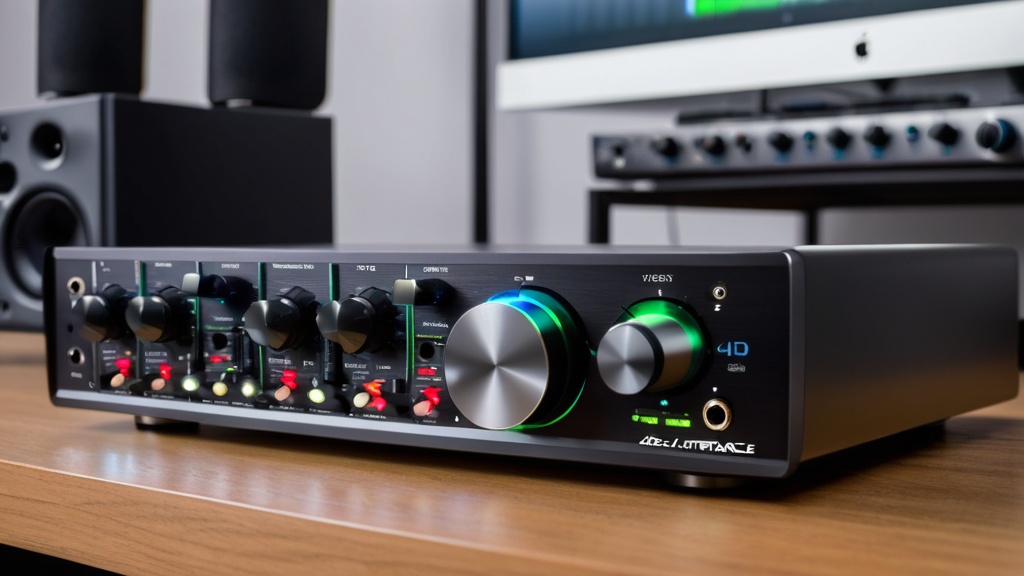
Once you have bought your audio interface, the next step is setting it up on your computer. This process can vary depending on the brand and model of the interface, but in general it is fairly simple. Start by connecting the interface to your computer via USB or Thunderbolt, depending on what your device supports.
Make sure you install the right drivers that come with the interface; without those drivers the interface often does not work properly. After installation, you need to set the audio interface as the primary sound source in your computer settings. This can usually be done through the sound menu in the system settings.
Once that is done, you can start testing the connection by playing your guitar and checking that the sound shows up correctly on your computer. It is important to make sure everything is set up properly before you start recording, to avoid frustration during the recording process.
Choosing the right settings for recording guitar
When recording guitar, it pays to choose the right settings for optimal sound quality. Start by selecting the right sample rate and bit depth in your recording software. A sample rate of 44.1 kHz and a bit depth of 24 bits are often enough for most uses, but if you want to make more professional recordings, you can consider higher settings. Once your recording is in, you can read in the step-by-step guide to mixing guitar recordings how to turn it into a balanced whole.
You should also pay attention to the input gain on your audio interface. It is important not to set it too high, because this can lead to distortion and unwanted noise in your recordings. Start with a low gain setting and raise it gradually while you play, until you reach a good level without clipping.
With the right balance, your recording will sound clear.
Using effects and amp simulations with the audio interface
One of the advantages of using an audio interface is the ability to add effects and amp simulations to your guitar sound. Many modern audio interfaces come with software that offers various effects, such as reverb, delay and compression. These effects can help enrich your sound and add more depth to your recordings. If you already use pedals, you can simply put them between the guitar and the interface; the effects pedal tips for beginners will help you get started.
There are also plenty of plugins available that imitate amp simulations. This lets you try out different amp styles without having to buy several amps. Whether you like a warm tube amp or a powerful solid-state amp, the right software lets you create almost any sound you want. Not sure yet what the knobs on an amp do? Then first read how a guitar amp works.
Experiment with different settings and effects to find your own unique sound.
Recording and editing guitar sound with an audio interface
Recording guitar sound with an audio interface is a relatively simple process once everything is set up properly. Open your recording software and create a new project. Select the right input for your guitar and make sure it is armed for recording.
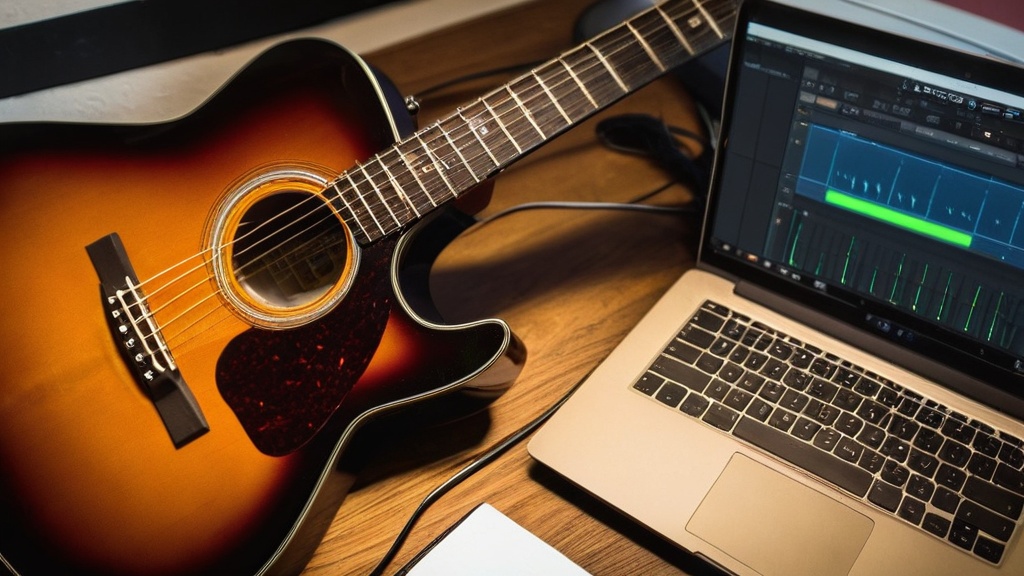
Start playing and record a few takes so you have different options to choose from during editing. After recording, you can start editing your recordings. This includes cutting unwanted parts, adjusting volumes and adding effects where needed.
Most DAWs (digital audio workstations) offer extensive editing options, so you can perfect your sound. Don’t forget to listen to your recordings regularly and make adjustments until you are happy with the end result. No DAW yet? There is free software for recording guitar that you can start with just fine.
Tips for optimizing your guitar sound with an audio interface
To get the best out of your guitar sound with an audio interface, there are a few tips you can follow. First, make sure you record in a quiet environment to minimize unwanted background noise. This can help you get a cleaner sound without distracting elements.
It is also important to maintain your equipment regularly. Check cables for wear and make sure everything is properly connected before you start recording. Good preparation can prevent a lot of frustration during the recording process.
Finally, keep experimenting with different settings and effects; sometimes a small change in EQ or reverb can make a big difference in how your guitar sounds.
Solving common problems when using an audio interface with guitar
Problems can sometimes come up when using an audio interface, which can be frustrating, especially when you are just starting to record. A common problem is latency, which means there is a delay between what you play and what is recorded. You can fix this by adjusting the buffer settings in your DAW; try lowering them for a faster response.
Another problem can be that no sound comes out or that there is noise during recording. Always check that all cables are properly connected and that the right input is selected in your recording software. If problems persist, it can help to restart the audio interface or even restart the computer. You can find more causes and solutions in the tips for recording guitar without noise.
By applying these tips and techniques, you can take your guitar recordings to a higher level with the help of an audio interface. Whether you are a beginner or already have some experience, there is always something new to learn about optimizing your sound and improving your recording skills.
Frequently asked questions about an audio interface with guitar
What is an audio interface?
An audio interface is a device used to convert sound signals from external sources, such as a guitar, for a computer. It makes it possible to record and play back sound using recording and production software.
How do you connect a guitar to an audio interface?
To connect a guitar to an audio interface, you need a guitar cable. Plug one end of the cable into the guitar and the other end into the instrument input of the audio interface.
Which settings do you need to adjust on the audio interface for recording guitar?
To record guitar with an audio interface, you need to select the right input that the guitar is plugged into. You may also need to adjust the gain settings to reach the right level of the guitar signal.
Which software can you use with an audio interface for recording guitar?
There are various recording and production programs available that you can use with an audio interface for recording guitar, such as Ableton Live, Pro Tools, Logic Pro, GarageBand and more.
How do you monitor the guitar sound while recording with an audio interface?
To monitor the guitar sound while recording with an audio interface, you can connect headphones to the headphone output of the interface. Some interfaces also have a direct monitoring function that lets you hear the guitar sound in real time without delay. A setup like this is also ideal for practicing guitar without disturbing your neighbors, because only you hear the sound.
Can you connect an acoustic guitar to an audio interface?
Yes. If your acoustic guitar has a pickup, the cable simply goes into the instrument input. Without a pickup, you record it with a microphone through the XLR input; a condenser microphone then needs phantom power (48V), which you turn on at the interface.
Do you need an amp if you record through an audio interface?
No. You can plug an electric guitar straight into the interface and let an amp simulation in your DAW create the amp sound. If you do want the sound of your own amp, you record it with a microphone in front of the speaker.
Why do you hear a delay when you play guitar through an audio interface?
That delay is called latency: the signal goes through your computer before you hear it. Lower the buffer size in your DAW to 128 or 64 samples and, on Windows, use the manufacturer’s ASIO driver. You can also use the interface’s direct monitoring; then you hear your guitar without delay, but without the amp simulation.
Do you need an audio interface to record guitar?
Not necessarily, but it makes recording a lot easier. With an audio interface you plug your guitar straight into your computer, with good sound quality and little delay. Without an interface you record with the microphone on your phone or laptop, but then you hear more noise and you cannot send your guitar directly through an amp simulation.
What is the difference between an audio interface and a sound card?
An audio interface is essentially an external sound card made for recording. It has instrument and microphone inputs with gain control, often phantom power and drivers for low latency. A computer’s built-in sound card is mainly meant for playing back sound and usually only has a simple mic input.



Leave a Reply